Availability
| Component | Version | Editions |
|---|---|---|
| Developer Portal | Available since v1.16.0 | Enterprise |
Prerequisites
- Dashboard License: Contact our team to obtain a license or get self-managed trial license by completing the registration on our website.
- Working Tyk Environment: You need access to a running Tyk instance. For setup instructions using Docker, please refer to the Tyk Getting Started Guide.
- Developer Portal Setup with
- Admin access to the Tyk Developer Portal.
- The end user (developer accounts) must exist in the portal.
- Tyk Developer Portal v1.16.0 or later.
- API Products, Plans and Catalogue already created and published in the portal.
What we will do
- Enable the Direct Access flow in the Admin Portal settings.
- Request access to an API Product as a developer and create a new application.
- Configure and manage access as an admin on behalf of developers.
Instructions
Follow these steps to configure and use the Direct Access flow in the Tyk Developer Portal:1. Enable Direct Access Flow (Admin)
- Log in to the Admin Portal as an administrator.
- In the main navigation, go to Settings.
- Select General from the settings menu.
-
Locate the API product access flow setting.
- By default, this is set to Cart-based flow.
- Switch the option from Cart-based flow to Direct access flow.
-
Click Save to apply the changes.
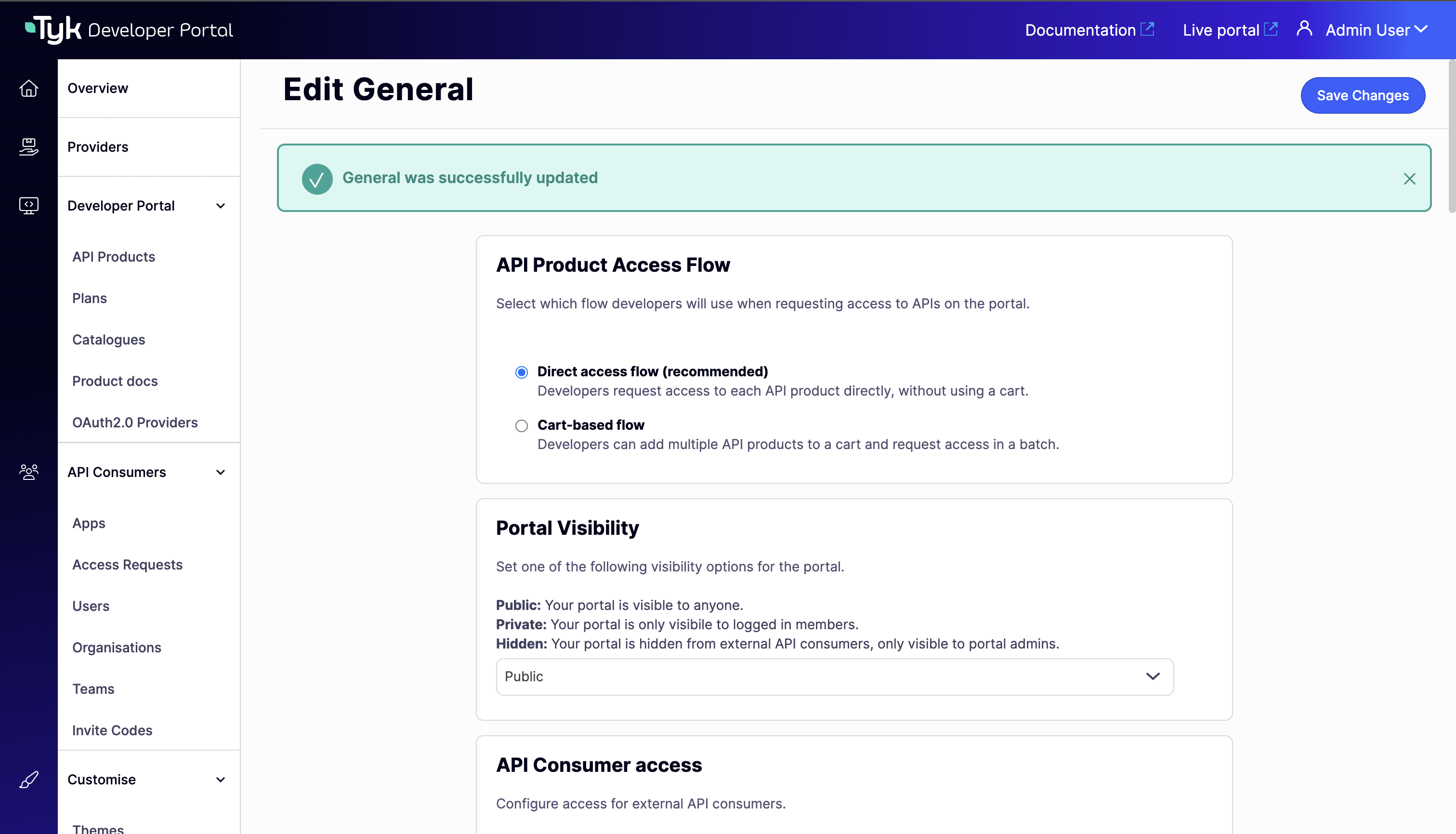
Once enabled, all API consumers will experience the Direct Access flow when requesting access to API products from the Live Portal.
2. Request Access to an API Product (Developer)
When the Direct Access flow is enabled, developers can request access to an API product without going through a shopping cart:- Log in to the Developer Portal as an API Consumer.
- In the main navigation, go to Catalogues.
- Browse the API Catalog and click on an API product you want to access.
- Review the available plans and their rate limits/quotas.
- Select the Plan you want to use.
- Click Access with this plan.
- Notice there is no shopping cart step - you go directly to the access request page.
- In the access request form:
- Enter an Application name (e.g.,
My Weather App). - Optionally add a Description for the application.
- Enter an Application name (e.g.,
- Click Submit request.
If the plan is configured for auto-approval, credentials will be issued immediately. Otherwise, an API Owner will review and approve your request.
View Your Credentials
After approval:- Click on your profile icon in the top-right corner and select My Dashboard from the dropdown.
- Go to My Apps in the left navigation.
- Click on your application.
-
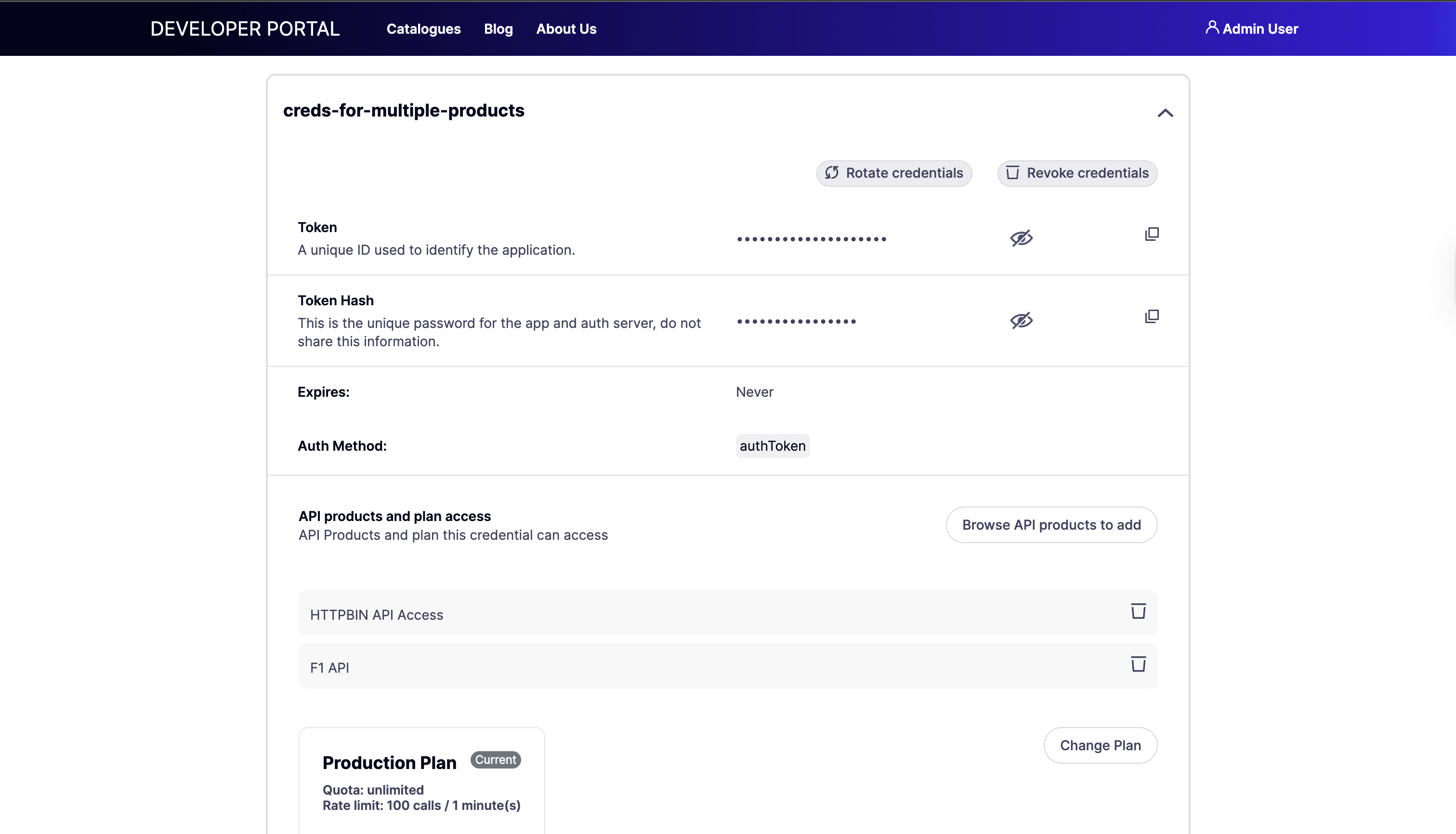
In the Credential Management section, you will see your access credentials.
- Click Show to reveal the API key.
- Copy the credentials for use in your API requests.
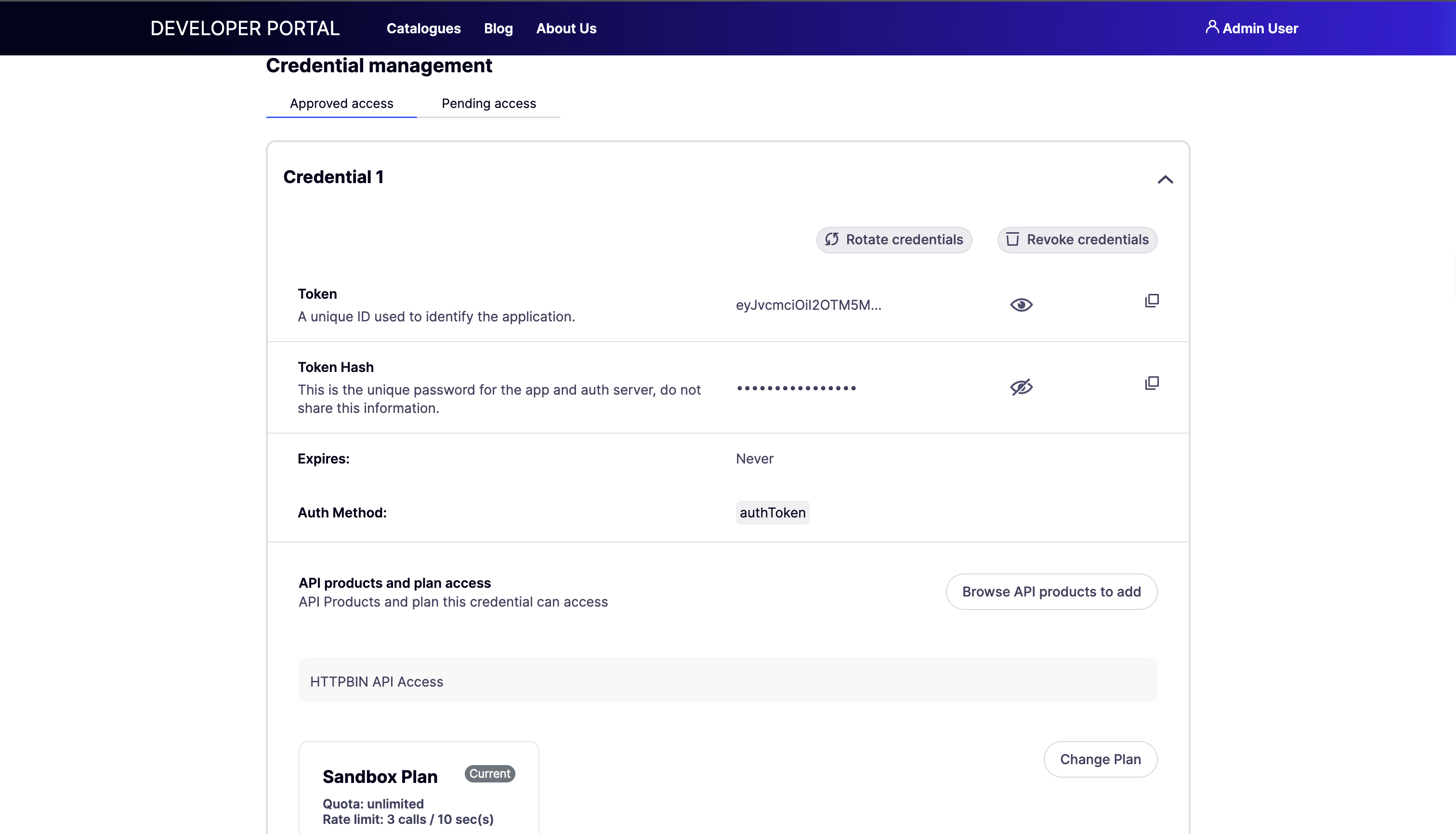
Configure Access as an Admin
Portal administrators can perform similar operations on behalf of developers from the Admin Portal:Create Applications for Developers
- Log in to the Admin Portal as an administrator.
- Navigate to API Consumers > Applications.
- Click Add new application.
- Enter the application details:
- Application name
- Description
- Select the Developer (API Consumer) who will own the application.
- Configure Visibility settings.
- Click Save.
Add Credentials and Products
- Navigate to the application details page.
- Click Add credential.
-
Choose the API Product and Plan to associate with the credential.
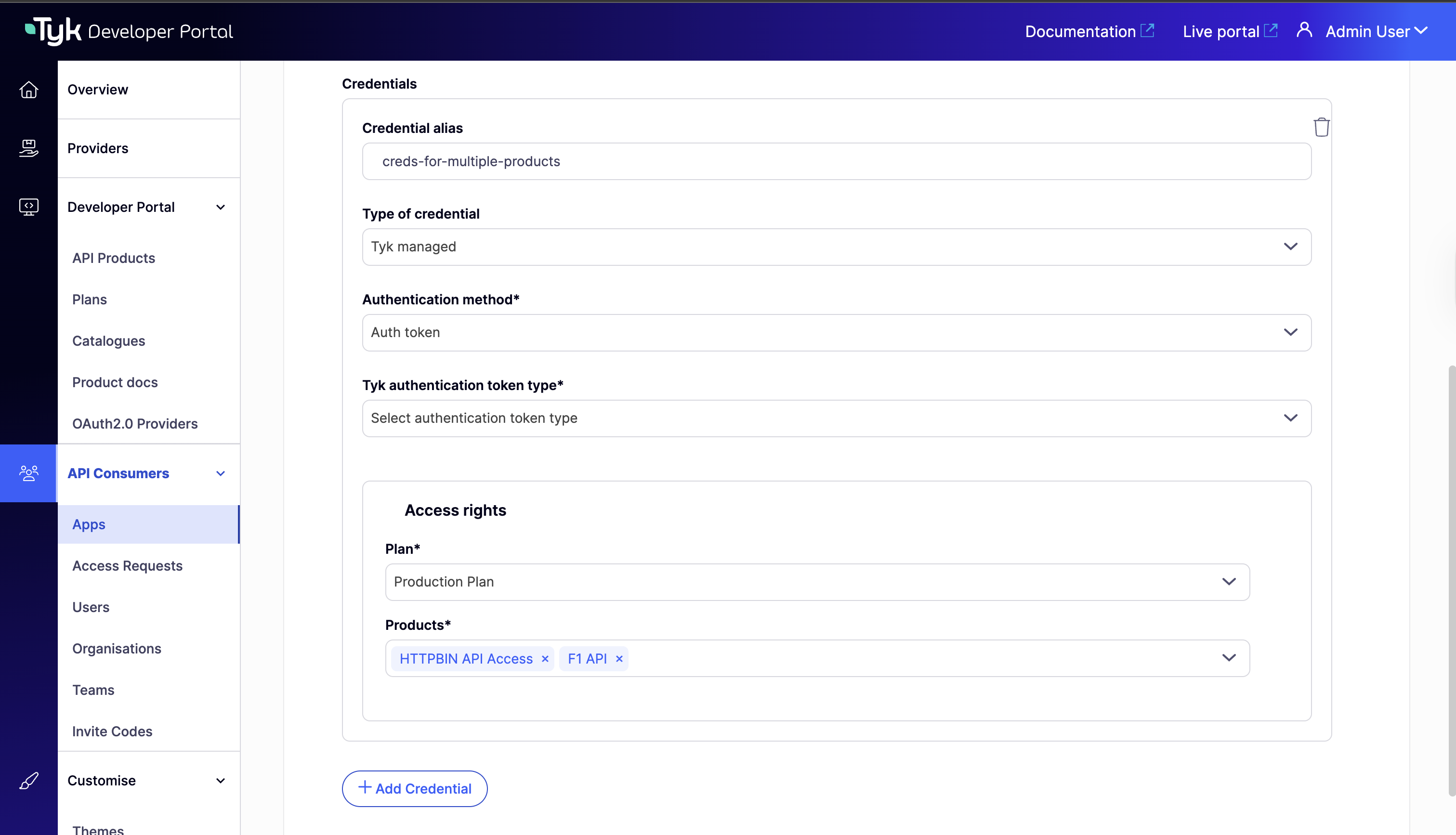
- Click on Save Changes
- The credential will be generated and associated with the selected product/plan.
-
Additional products on the same plan can be added to this credential.