

Availability
| Component | Version | Editions |
|---|---|---|
| Developer Portal | Available since v1.16.0 | Enterprise |
Prerequisites
- Dashboard License: Contact our team to obtain a license or get self-managed trial license by completing the registration on our website.
- Working Tyk Environment: You need access to a running Tyk instance. For setup instructions using Docker, please refer to the Tyk Getting Started Guide.
- Developer Portal Setup with
- Admin access to the Tyk Developer Portal.
- The end user (developer accounts) must exist in the portal.
- Tyk Developer Portal v1.16.0 or later.
- API Products, Plans and Catalogue already created and published in the portal.
- Approved access request to an API Product as a developer and an application already created. please refer to the guide.
What we will do
- Request access to an API Product as a developer and create a new application.
- Add more products to an existing application by reusing credentials.
- Change the Plan for an existing credential.
- Handle scenarios where different plans require separate credentials within the same app.
Instructions
Follow these steps to configure and use the Direct Access flow in the Tyk Developer Portal:1. Add More Products Using an Existing Credential
Once you have an application with approved access to at least one API product, you can add access to additional products using your existing credential:- Log in to the Developer Portal as an API Consumer.
- Navigate to Catalogues and select another API product.
- Select the same plan that your existing credential uses (e.g., if your existing credential uses “Gold”, select “Gold” for the new product).
- Click Access with this plan.
- On the access request page, select your existing Application from the dropdown. You will see the option to use an existing credential.
- Choose the existing Credential that uses the matching plan.
-
Click Submit request.
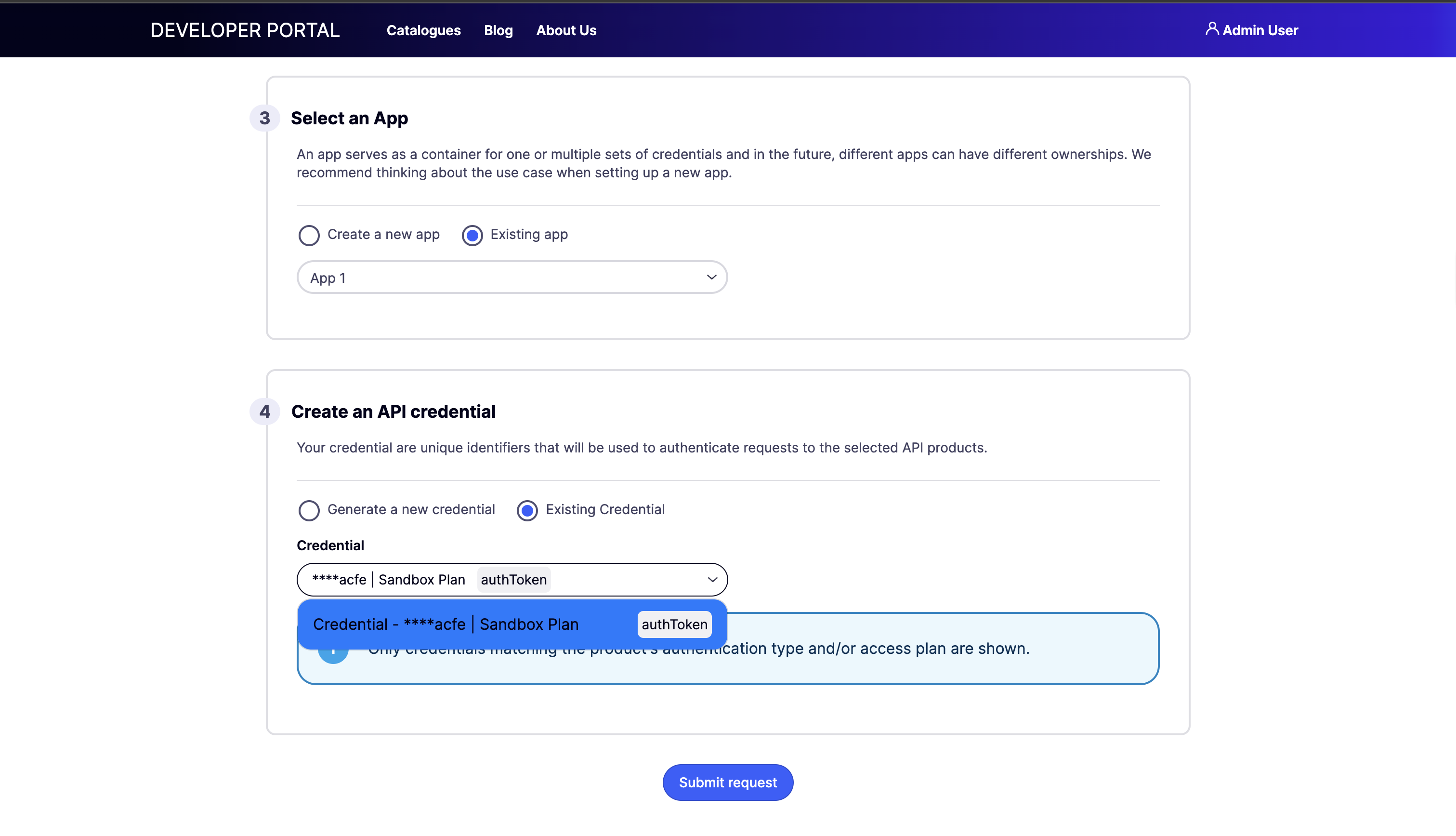
Key benefit: Your existing credential will now provide access to both API products. You don’t need to manage multiple API keys when using the same plan across multiple products.
View Your Credentials
After approval:- Click on your profile icon in the top-right corner and select My Dashboard from the dropdown.
- Go to My Apps in the left navigation.
- Click on your application.
-
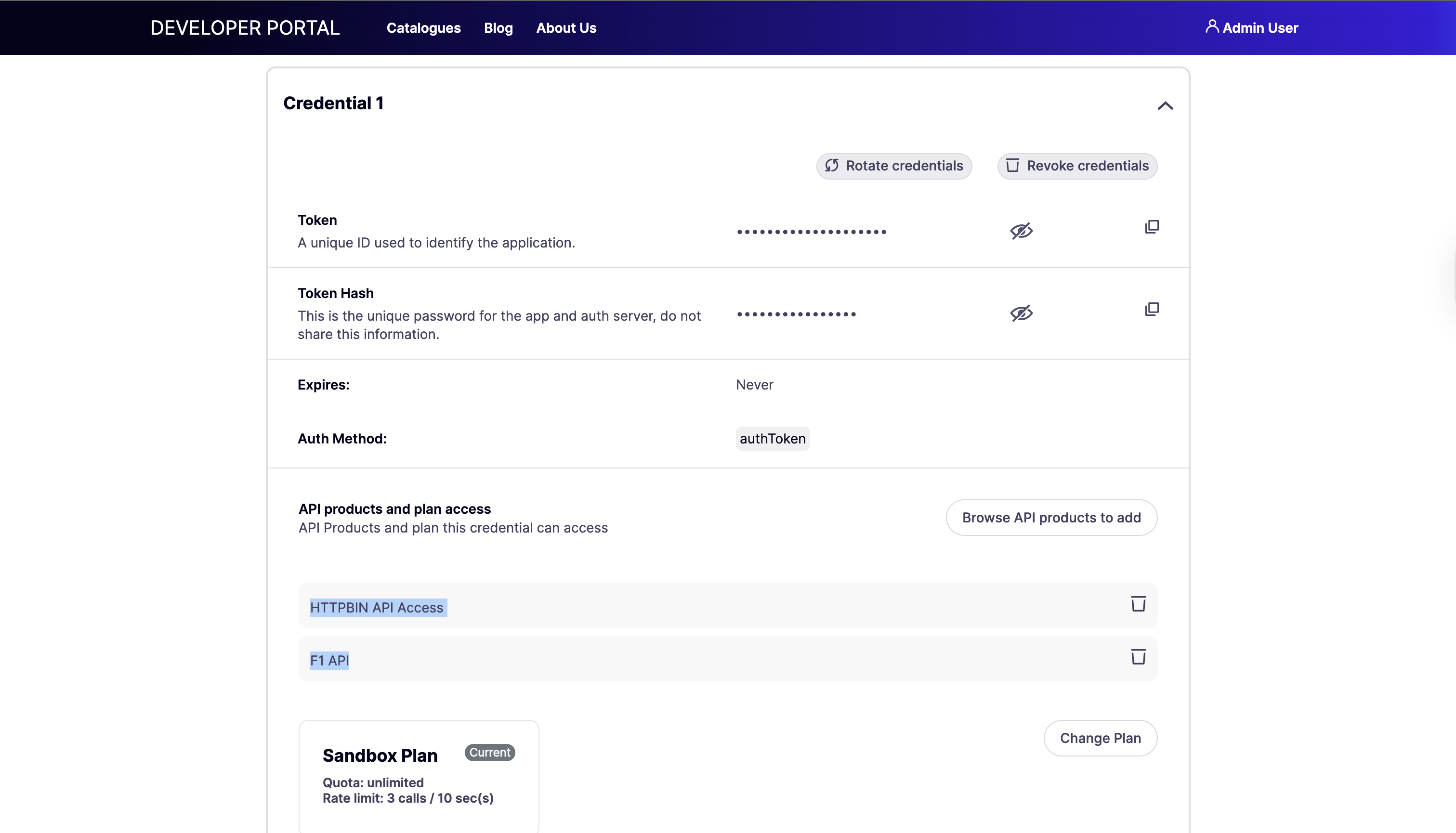
In the Credential Management section, you will see your access credentials.
- Click Show to reveal the API key.
- Copy the credentials for use in your API requests.
2. Change the Plan for an Existing Credential
Developers can upgrade or downgrade their plan for existing product access:- Log in to the Developer Portal and navigate to My Dashboard.
- Go to My Apps and click on the relevant application.
- Find the credential you want to modify.
- Click Change plan
- Choose your new plan from the available options (e.g., upgrade from Gold to Platinum).
- Submit the plan change request.
3. Handle Different Plans Within the Same Application
When you want to add an API product using a different plan than your existing credentials:- Log in to the Developer Portal and navigate to Catalogues.
- Select an API product.
- Select a different plan than your existing credentials use (e.g., if your existing credential uses “Gold” but you want “Bronze” for this product).
- Click Request access.
- On the access request page, you will not see the option to reuse your existing credential.
- The system will require you to create a new credential for this plan:
- Enter a Name for the new credential.
- Complete the access request form.
- Click Submit request.
Why a new credential is required: A single credential can only be associated with ONE API plan. This ensures consistent rate limiting and quota enforcement across all products accessed through that credential.
Credential Compatibility Reference
| Scenario | Can Reuse Existing Credential? | Action Required |
|---|---|---|
| Same plan as existing credential | Yes | Select existing credential |
| Different plan than existing credential | No | Create new credential |